Business rates
You are currently not signed in. This page will display different information that you might find more useful if you sign in to your account.
For help to register or sign in, see MyHarrow Support
How to add the Business Rates service
First sign in to your MyHarrow Account. If you need help to register or sign in, see MyHarrow Support.
To add the Business Rates service, you will need:
- Your 10-digit Business Rates account number
- The postcode of the charged property
You can add multiple Business Rates accounts.
If you need help to add the service, please read the guidance below.
Adding a business rates account
Before you can view your bills and payments, you need to add the business rates account service.
Step 1: Choose the service to add
The first time you sign in, you will go straight to the list of services available. If you have signed in before, you can select 'Add Service' from the MyServices page.
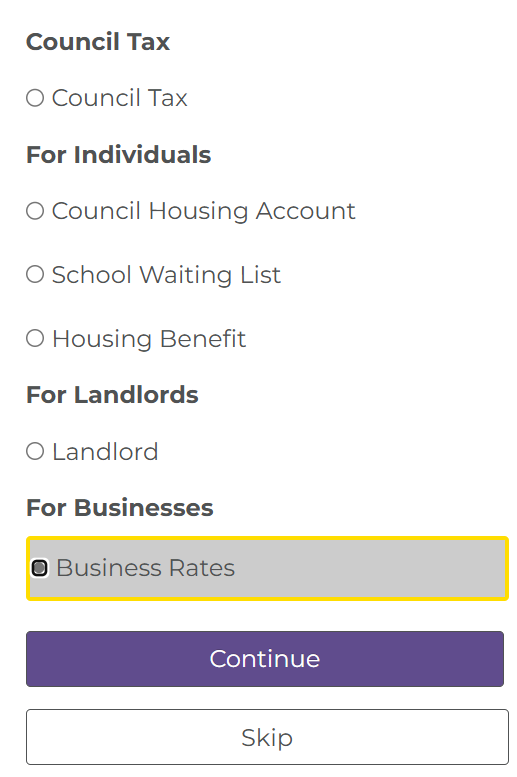 |
Select 'Business Rates' and continue. You can add more business rates accounts and other services later by repeating this process. |
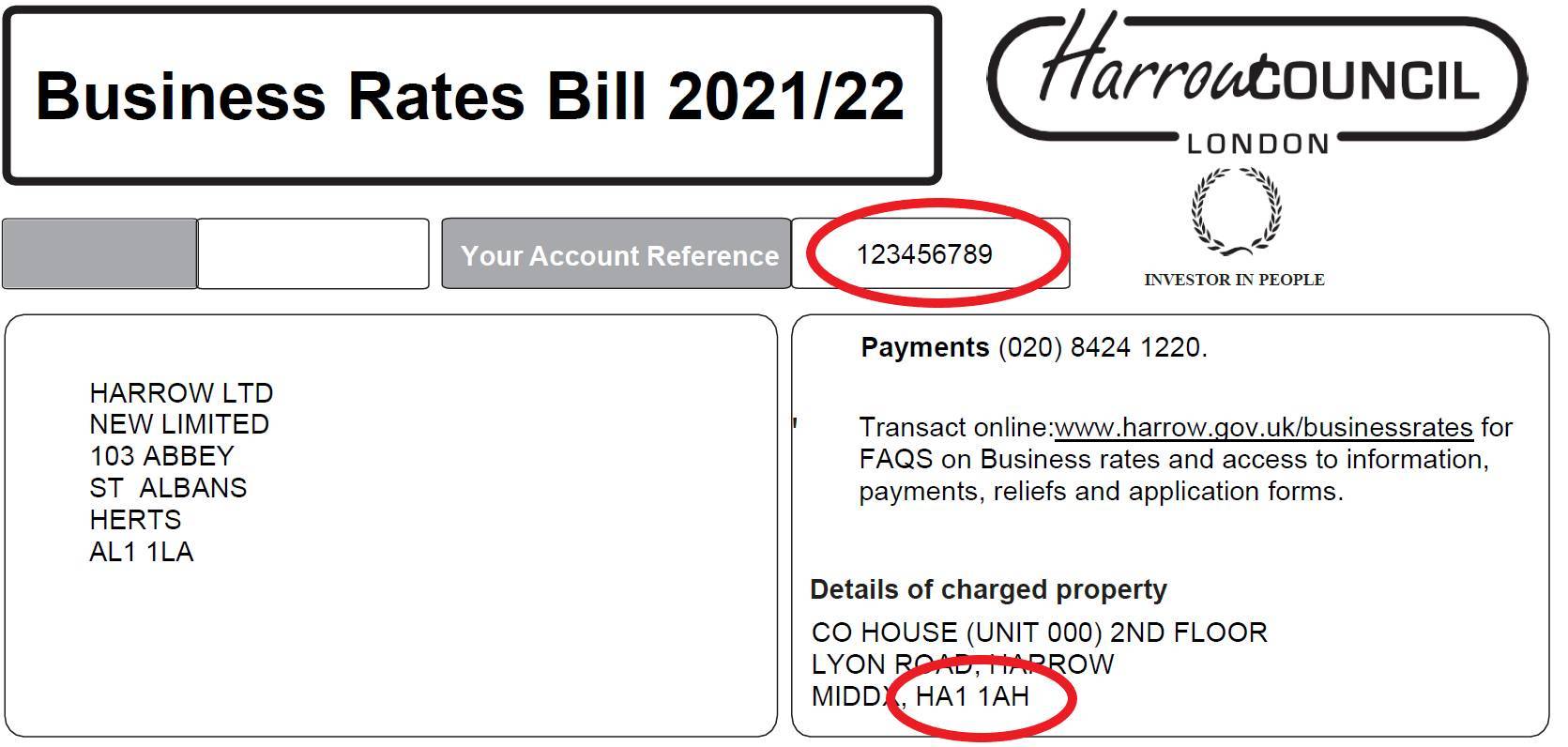 |
Step 2: Enter your detailsTo link up your business rates account you will need your 10-digit Account Reference and the Charged Property Postcode, as shown on your bill. |
|
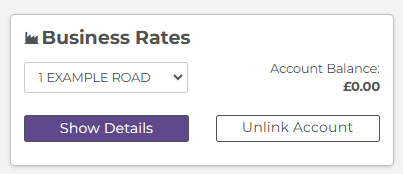
Step 3: The account is linkedYour business rates account is now linked to your MyHarrow Account. If you have any more business rates accounts, you can link them using the 'Add Services' button. To view bills/correspondence and payments for the account click on 'Show Details' |
Viewing your business rates details
Click on the 'Show Details' button on the MyServices page. This will take you to the business rates summary.
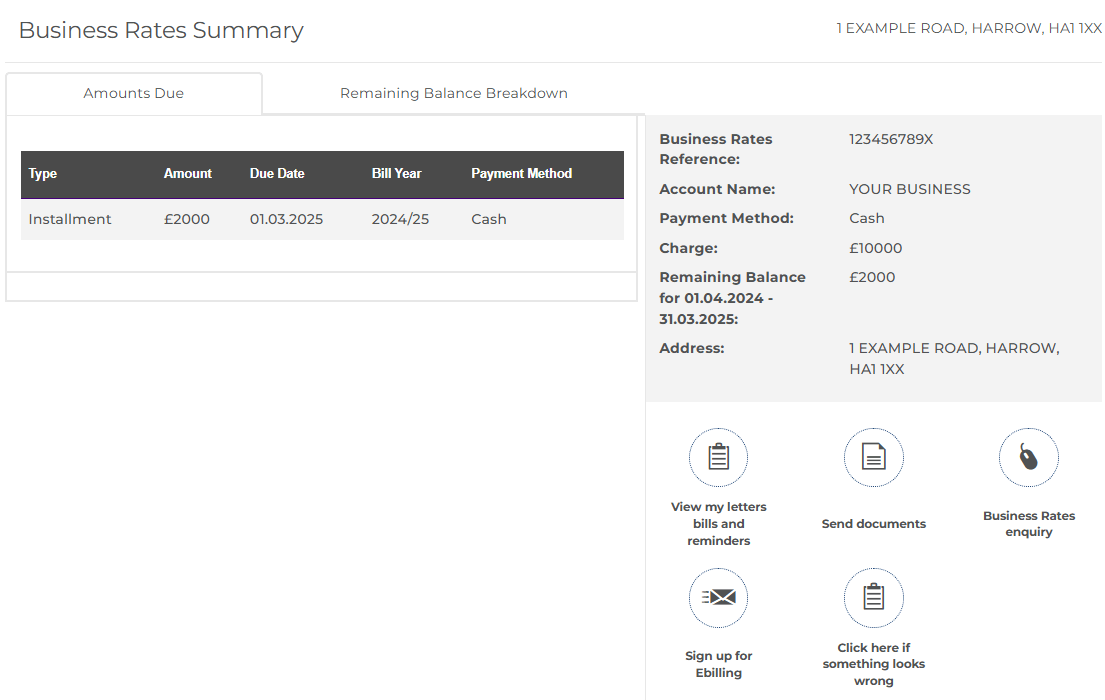 |
Summary screenHere you can see an overview of the account including the yearly charge and remaining balance The tabs below show:
If you are using a mobile phone, scroll down to see all the options. |
 |
View bills and correspondenceOn the business rates summary page, click on the link to 'View my Bills and Reminders' Then on the correspondence page, select the period you wish to view from the drop-down menu. |
Sign up for / Cancel paperless e-billing
The link to 'Sign up for e-billing' is on the Business Rates Summary page.
To check if you are already signed up, click on the 'Sign up for E-billing' link and proceed to the form. There you will see your e-billing status. If you are not registered you can proceed. If you are registered you can cancel.
If you cancel e-billing, you can still sign in to view your bills.
If you have more than one Business Rates account, you will need to set your preference for each account separately.
Frequently Asked Questions
What should I do if I have not received a bill yet?
If you have recently moved in and have not got your bill yet, you will need to Register for Business Rates
Information is wrong on my account
If the information displayed on your MyHarrow Account is wrong, for example a spelling mistake, you will need to tell us.
You can send proof of the correct information using the Evidence upload form.
A payment is not showing on my account
Payments are displayed on your account the next working day after they are received. Different methods of payments may take longer for us to get them.
If a payment is missing, send proof of the payment using the Evidence upload form.
I have received a Reminder, Final Notice or Summons
You can view all your correspondence by clicking on the ‘View my letters, bills and reminders’ button on the Business Rates Summary page.
You can check what payments were missed on Payment tab on the Business Rates Summary page.
Our webpages have more information about what to do if you have received a Reminder, Final Notice or Summons
I cannot submit a webform on the MyHarrow Account
If you cannot submit a webform, complete our MyHarrow Account enquiry form.
There is an error message
If you see an error message, try reloading the page or using a different web browser.
If the error continues, send a screenshot of the error and description of what you were doing when it happened.
You can send it using the MyHarrow Support form below.